I can't see well
Recognizing blurred photographs
 Funded by the European Union. Views and opinions expressed are however those of the author(s) only and do not necessarily reflect those of the European Union or the European Education and Culture Executive Agency (EACEA). Neither the European Union nor EACEA can be held responsible for them. |
 All contents, in particular texts, pictures and graphics, are protected by copyright. Unless expressly stated otherwise, copyright is held by media.eduskills.plus and is licensed under Creative Commons Attribution - Non-commercial - Distribution under the same conditions 4.0 International license. They may be subject to the terms of the license. |
2026 media.eduskills.plus
Learning outcomes
Competencies
|
|
|
Target group 5 years and up
|
|
Required materials
|
|
Materials
|
Description of the activity (step by step)
Preparation:
To carry out the activity, look for several photographs with different motifs (landscape, architecture, still life, and portrait) in the library, on the web, in your archive, or the children's archive. Edit the photos using a computer program (Photoshop, Gimp, Paint.NET, Picasa, various mobile apps, etc.) using built-in filters and settings (blur, brightness, dual images, black and white conversion, etc.). Make multiple versions (four or more) for each photo so that the settings and consequently the distortions are displayed in stages. Print or save the versions in a folder in the order from least recognizable (most modified) to most recognizable (original). Talk to the children about how looking through different translucent materials changes our perception. Discuss human vision and the types and causes of vision disorders, visual impairment, and blindness.
Implementation:
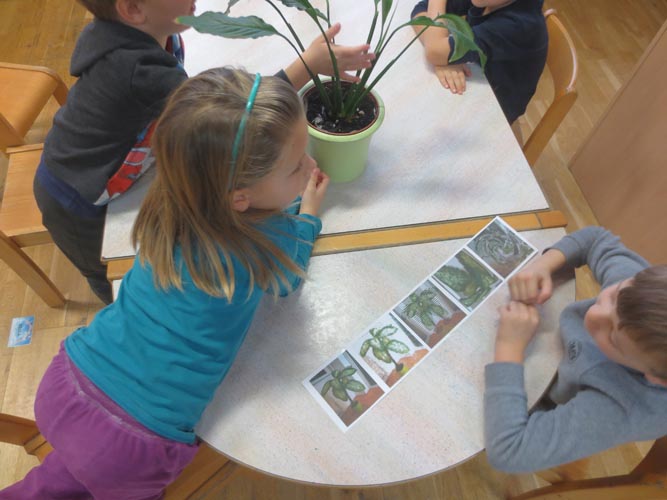
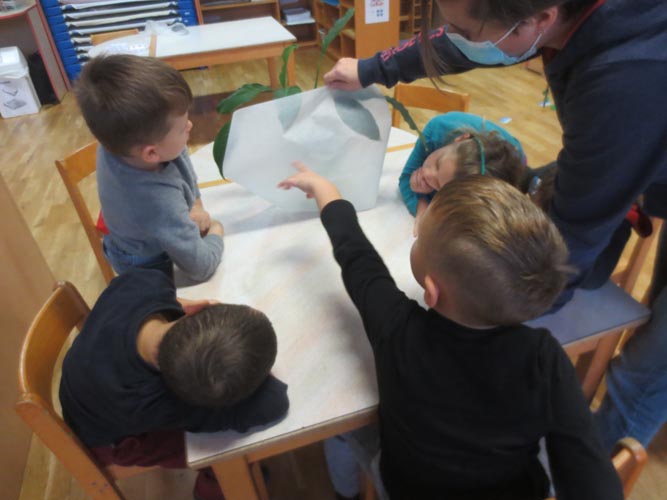
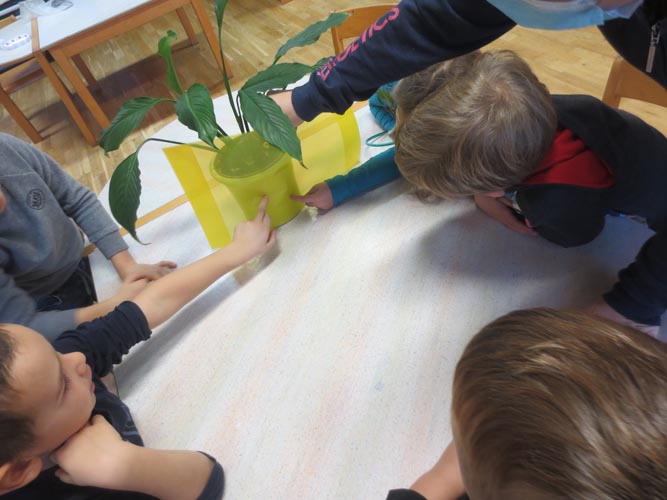
To start the activity, select an object in the room, place it on the table, and look at it through various transparent materials that you have previously prepared (e.g. (opaque) glass, a plastic bottle, a jar filled with water, etc.). Have the children experiment with the materials on their own and motivate them to comment on their visual perceptions. Then, show the children the photographs in the prepared order and let them guess what the photos represent.
Reflection:
Encourage the children to comment on their feelings, and start a debate on visual impairments and challenges that visually impaired people face.
Variations and additional ideas
Children can take photographs. Then edit them – autonomously or under guidance. You can make the children aware of the everyday objects meant for visually impaired people, e.g. the audio boxes on traffic lights, tactile paving, Braille writing, etc.
Background information and didactical perspective
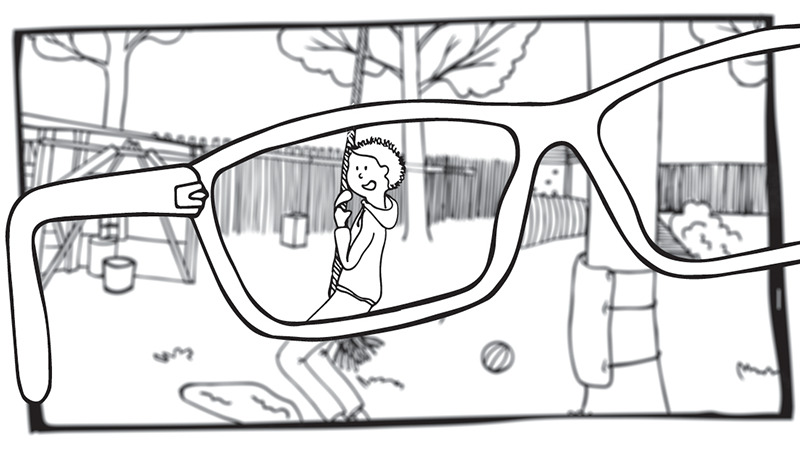
The development of visual perception is very important for holistic development, as most information comes to the brain through the eyes. Visual disturbances can manifest in very different ways (blurred vision, double vision, color blindness, etc.) and to different extents (mild disturbances or complete blindness). To accept visually impaired people and provide them with appropriate help, we need to develop empathy.
Experience from kindergartens
In the original, unaltered photographs, the children easily recognized their peers and objects from the playroom and named them. We then showed the children the altered, distorted photos we had previously seen as the originals. They had major problems as they could not identify any objects. Everyone saw something different in the photos: in the photo of the pot - a rabbit or a butterfly; in peer photography — a vortex, fog, wind; in a photograph of a car – a man or a dragon. The children said that all the photos they were seeing were new, different and they had never seen them before. It wasn’t until the educator showed them the process of changing the photos on the computer that they realized that the photos were the same as the ones they had seen in the beginning. The children then observed objects in the playroom through various foils, cloth, plastic and glass and noticed changes in the color of the pot leaves, the color of the flower pot, the color of the drawing sheets and various toys. They were most impressed with the colored foils in primary colors, which they overlapped and got secondary colors. The resulting changes were also photographed.
Materials
The photos are downloadable at https://media.eduskills.plus/activities/society_seewell.
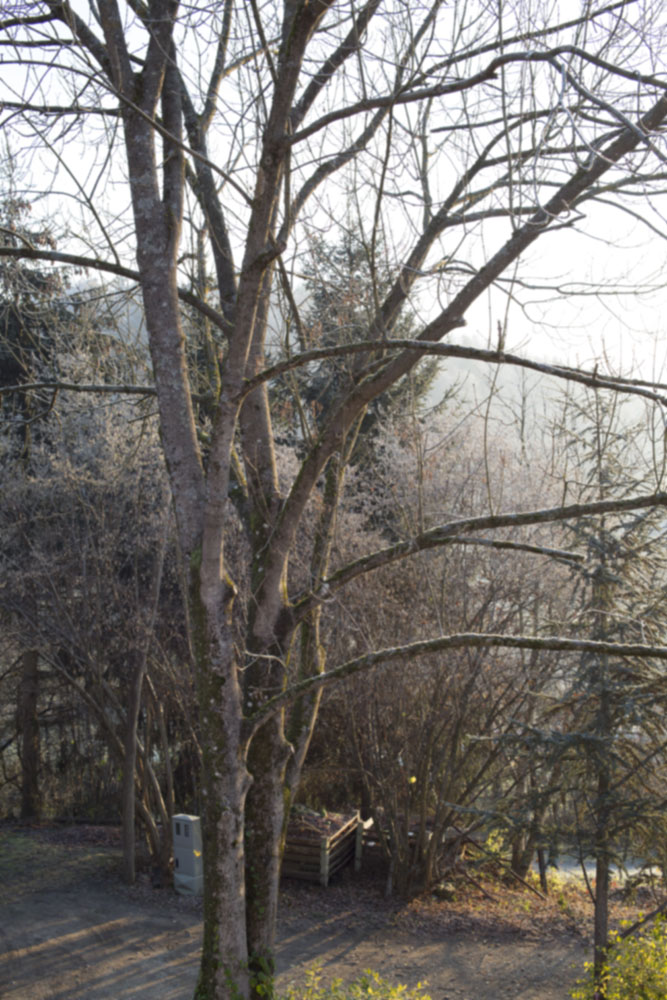
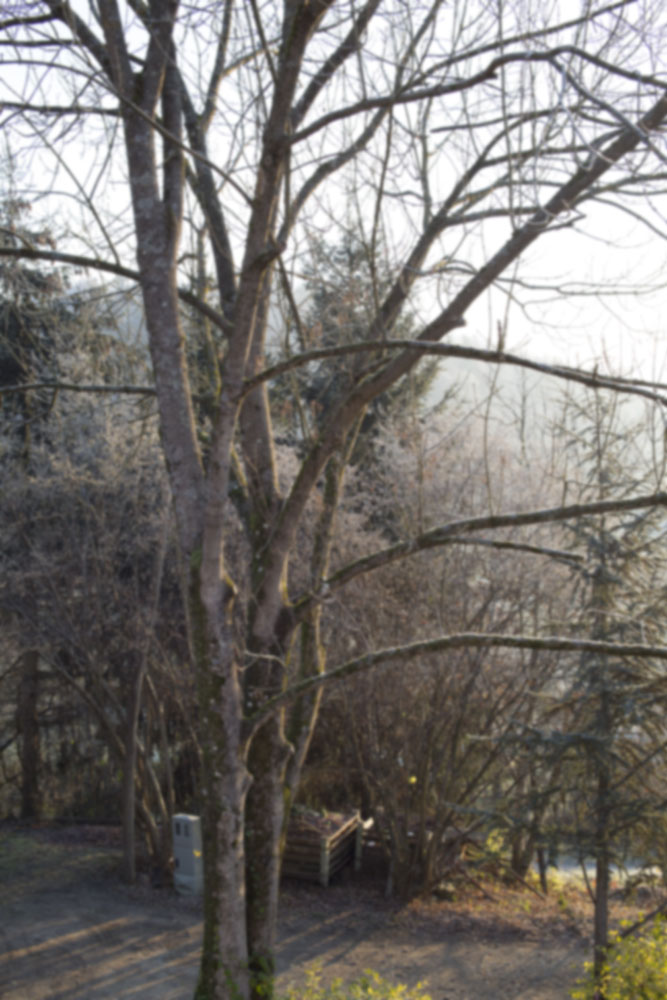
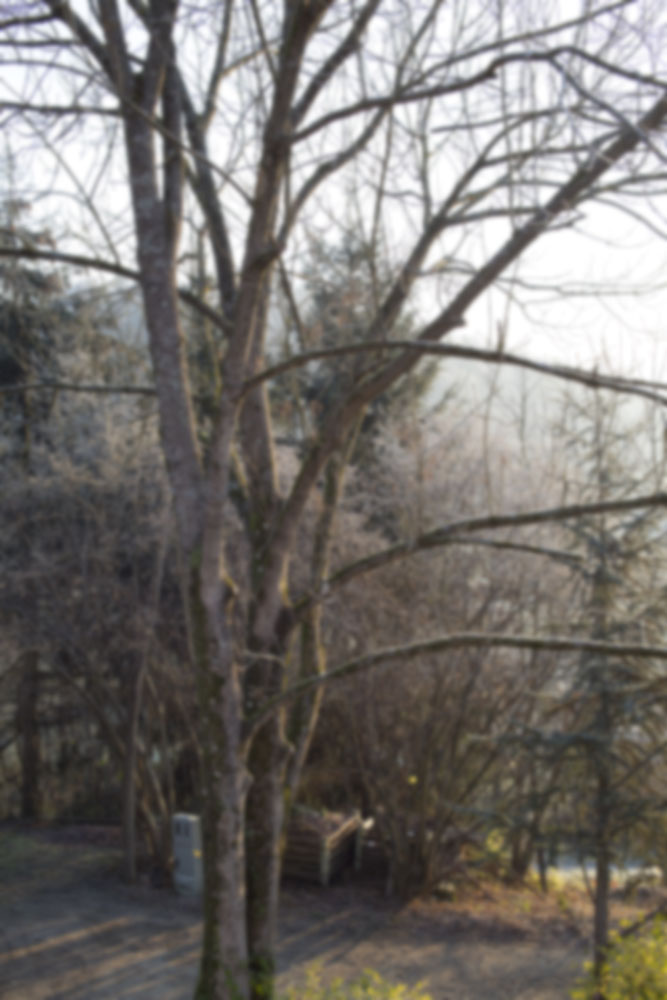
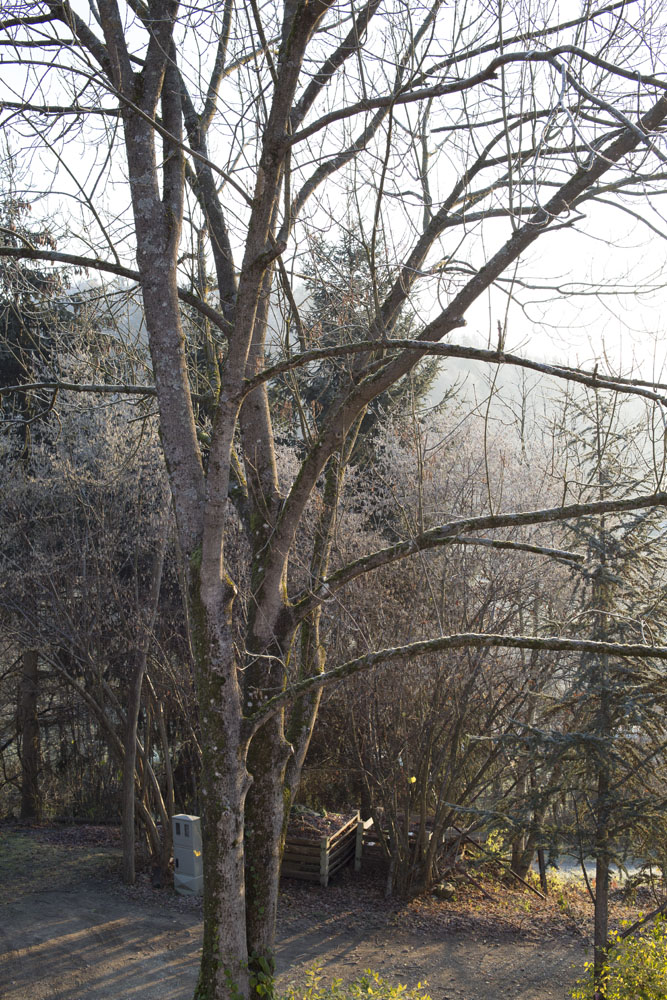
Already prepared sample photographs with different blurring



Photos of the activity